|
Back
|
|
HOW TO LOGIN?
|
| |
|
HOW TO ADD ITEMS?
|
| |
|
HOW TO COMPLETE TAX RETURN?
|
|
|
HOW TO LOGIN?
|
|
Top
|
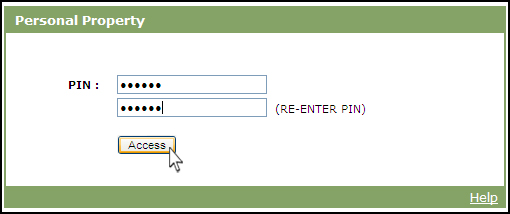
To login into the Personal Property Online application, enter the Unique Pin Number provided by the
County in the Pin # text field as shown in Fig 1 (indicated by an arrow) and Re-enter same Pin #.
Once the pin number is entered, click on the Access button.
|
| |
|
| Fig 1: Login using the Pin Number |
| |
|
On clicking the Access button, Legal Terms page is displayed as shown in Fig 2.
|
| |
| Fig 2: Legal Terms page |

|
| |
|
To get into the application the user has to select the Accept checkbox as shown in Fig 2 (indicated by a mouse pointer).
|
|
| HOW TO ADD ITEMS? |
Top |
| |
|
To add items for a Personal Property, click on the Update Tax Return hyper-link as shown in Fig 3.
|
| |
| Fig 3: Click on update tax return |

|
| |
|
On clicking the Update Tax Return hyper-link, the page navigates to Items page as shown in Fig 4.
|
| |
| Fig 4: Items page |

|
| |
|
In Items page click on Add Item hyper-link as shown in Fig 4. On clicking Add Item hyper-link, Add New Item page is displayed as shown in Fig 5.
|
| |
| Fig 5: Add New Item page. |

|
| |
In Add New Item page enter all the relevant information related to the item you wish to add to the property.
Note: Select a category from the Category dropdown. Once the
category is selected the sub Category dropdown will be populated
with relevant categories which correspond to the selected category
Now enter the Item Description in the Item Desc text area, Acq.date, Item year and Item Cost. Once all the newly added item is displayed in the Items table as the relevant data are entered click on Add Item
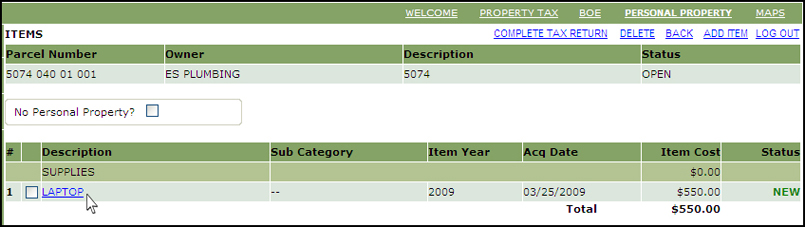
button as shown in Fig 5. On clicking the Add Item button shown in Fig 6.
|
| |
| Fig 6: Newly added item displayed in the Items table |
|
| |
|
| HOW TO COMPLETE TAX RETURN? |
Top |
| |
|
Once all the items and part information are added you have to complete tax return.To do this, click on the Complete Tax Return hyper- link as shown in Fig 7.
|
| |
| Fig 7: Click on Complete Tax Return |

|
| |
|
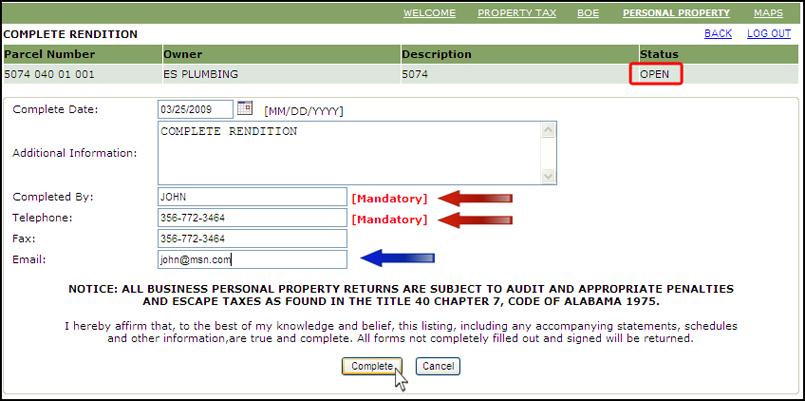
On clicking the Complete Tax Return hyper-link, Complete Rendition page is displayed as shown in Fig 8.
|
| |
| Fig 8: Complete Rendition page |
|
| |
|
In Complete Rendition page you can notice the current status of the personal property is “OPEN” as
shown in Fig 8 (highlighted in red). Enter the completed date of the tax return under the Complete
Date text field.
|
| |
|
Note: Complete date displayed here by default will be the present day as shown in Fig 8. If you wish to
enter a specific complete date, you have to ensure that the complete date that is entered will
be prior to the present date.
|
| |
|
Once the Complete Date is entered, enter Additional Information, enter Completed By (indicated by
red arrow in Fig 8 and this field is mandatory), enter Telephone number, Fax number, Email id and
click on the Complete button as shown in Fig 8.
|
| |
|
Note: Enter a valid email address. A Confirmation mail from the county will be sent to the mail id
indicated under the Email text field (indicated by an arrow in Fig 8).
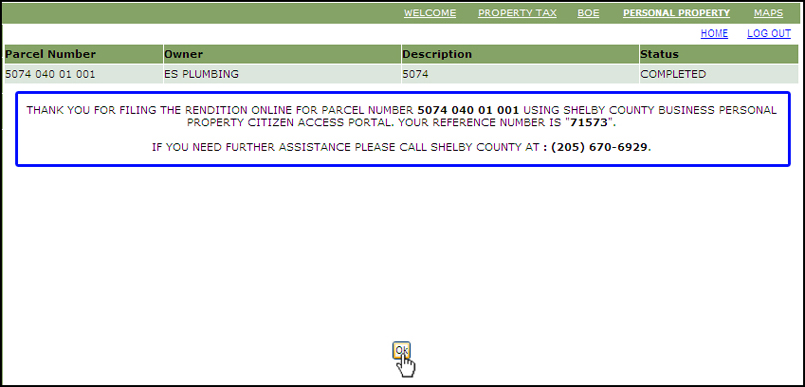
On clicking the Complete button, the personal property status gets updated to "COMPLETED” as shown in
Fig 9.
|
| |
| Fig 9: : Personal Property status updated to complete |
|
| |
|
CONFIRMATION MESSAGE:
|
| |
A confirmation message will be displayed (highlighted in blue) once the Personal property status is
updated to “COMPLETED” as shown in
Fig 9.
|
| |
In the confirmation message a
reference number is allotted to the user by the county and this reference number can be used by the user
for future reference/Assistance.Click on the OK button as shown in Fig 9.
On clicking the OK button the page navigates to the Update Account page as shown in Fig 10.
|
| |
| Fig 10: Click on Ok button |

|
| |
|
In Update Account page, we can notice that the status is updated to "COMPLETED" as shown in Fig 10
(highlighted in red).
|
| |